May 20th, 2009 | Tags:

We have released Update Rollup 8 for Exchange Server 2007 Service Pack 1 (KB 968012) to the download center. The release of the rollup via Microsoft Update will happen on May 26.

As in the previous rollups, we have done a mix of product improvements (aka Critical Design Change Requests) and bug fixes. A few key ones which I would like to call out are as follows:

  1. KB 969690 – We have fixed the bug introduced in Update Rollup 7 which caused the sender of the Delivery Status Notification (DSN) to be unresolved.
  2. Disable kernel mode authentication in Windows Server 2008 for CAS servers – As documented here, it was required to manually take the additional step to configure the CAS servers running Windows Server 2008 to disable kernel mode authentication. Starting this rollup, the installer will configure this for you.
  3. X-Header promotion to named properties- Change to the way X-headers are promoted to named properties. More on this in Jason Nelson’s blog post Named Properties, X-Headers, and You.
  4. KB 961606 – We have fixed a bug where Outlook Web Access (OWA) users may find that the font size of plain text messages is extremely small on third-party Web browsers.

KB 968012 has more details about this release and a complete list of all fixes included in this rollup.

As a follow up to the Exchange Server 2007 Service Pack 2 (SP2) announcement, all fixes in this Update rollup and the previous ones we have released for Exchange Server 2007 will be included with Exchange Server 2007 SP2. We will have a blog post soon which covers:

  • When update rollups can be expected for Exchange 2007 SP2.
  • Support plans for Exchange 2007 SP1 which will be in support as per the timeline in Microsoft’s Service Pack Support Policy.

As always, the Exchange Software Updates forum is available to provide help if you encounter issues in the updates we release for Exchange. We have staffed the forums with engineers monitoring the forum ready to assist you and request you to utilize that mode instead of asking for help via comments on this blog.

– Exchange Customer Experience team

Source: here

May 19th, 2009 | Tags: , ,

Well it just seems to keep heating up in the world of “who has the best hypervisor” (well I know, Hyper-V ehum) and Jeff has made another great post over at the Windows Virtualisation Blog.

A recent vulnerabilty has been discovered that effects IIS 6.0 web server where WebDav is enabled, this is likely to be patched on the next patch Tuesday given that it is yet to be seen in the wild (if this changes I have no doubt it will be delivered as an out of band). For more information check out the Microsoft security advisory (971492) here. Or Mitre CVE here

May 19th, 2009 | Tags: , ,

First off, if you have a warranty these instructions will invalidate it (make no mistake about this), secondly if you write-off your satnav this is not my responsibility, (so don’t give your wife my e-mail address)

Okay, caveats over with. As most early’ish adopters of satnav devices will know by now the batteries go in these things long before they become end-of-life – that is of course if they don’t get stolen from your car either. This is mainly due to companies (like TomTom) providing endless free software updates and newer maps at a reasonable fee.

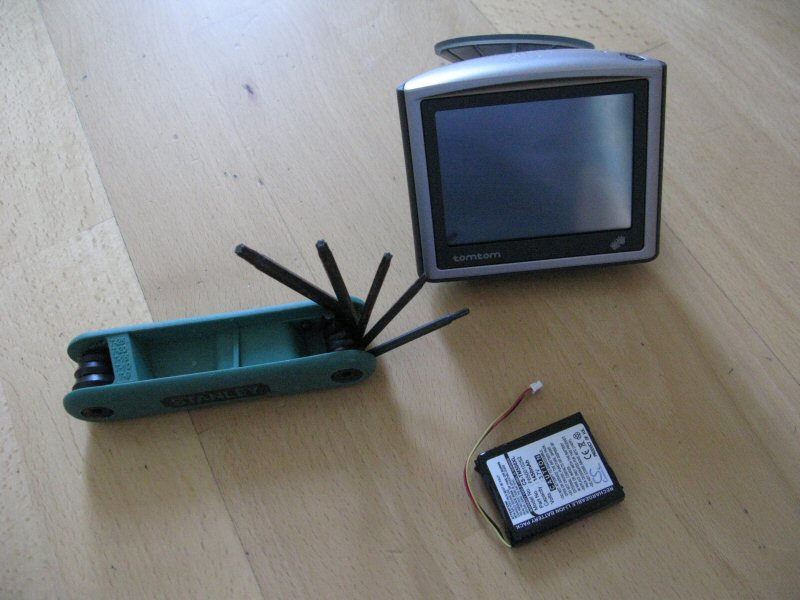
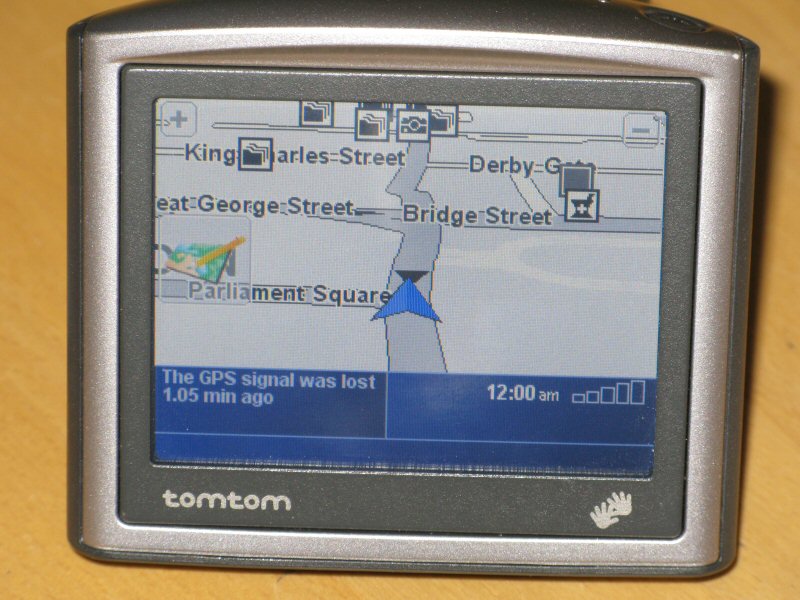
The answer for the braver souls is to take a battery upgrade into your own hands, and it really is not that hard either. You can buy a replacement battery from a number of suppliers. Be sure you know which type you have, mine is a TomTom One v2 and I picked up a replacement battery on eBay for £10

First of all you need a torx screwdriver, every geek should have one of these by now, if you don’t then shame on you!

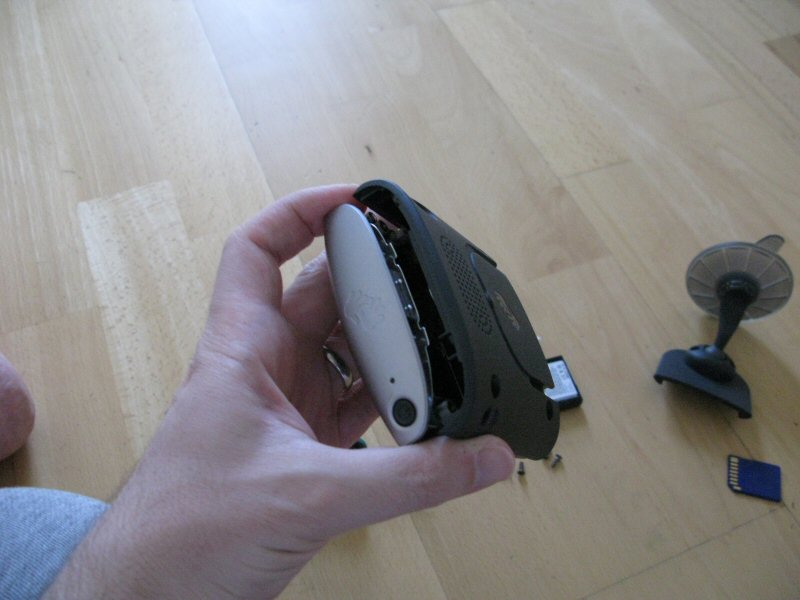
Next, remove the four screws at the rear of the device – they come out easily and are not glued

Once all four screws are removed gently slide the silver front unit out, you can wedge a min-flat screwdriver to prize open

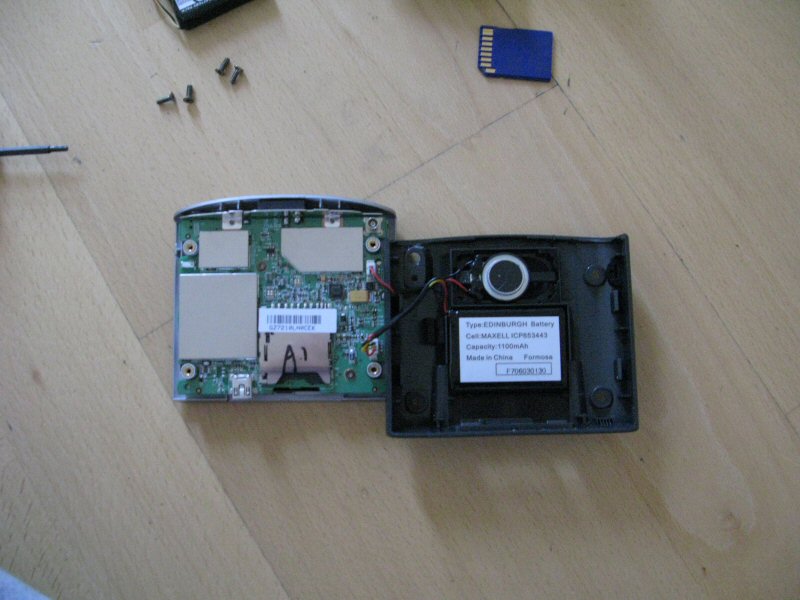
Ahah. the inside of my TomTom (there is no going back now!) On the right is the battery, it is connected by a wire. Gently remove from the board and make sure to not mistake it for the speaker cable

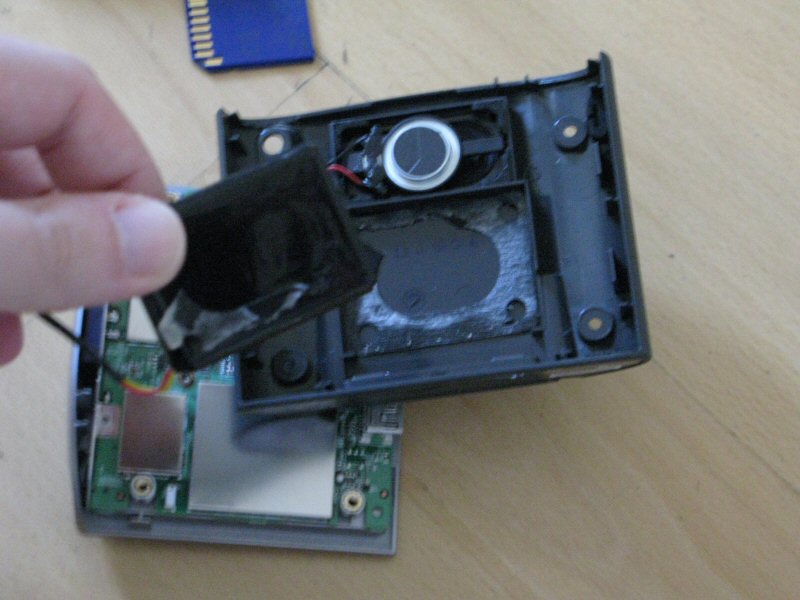
Now you need to remove the old battery, this is stuck down so your trustly min-flat screwdriver is needed to prize off

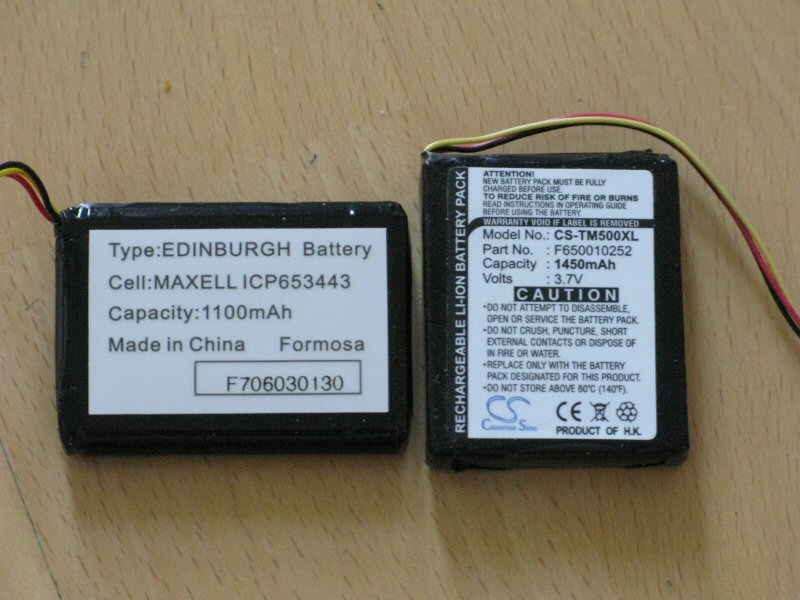
You will notice my new battery (on the right) is a higher capacity, this will give me a longer life than before

Assembly time, ensuring you did not remove all the sticky foam you should find the new battery sticks down easily

Screw back together and TADA, your shiny new (well sort of new) TomTom is restored back to the day it came off a factory floor!

May 18th, 2009 | Tags:

The Exchange Team Blog has a new video illustrating database availability groups (DAGs) and the simplicity of high availability in the up and coming version of Exchange, what I want to know is how easy it is to fail back?

Source: here

May 18th, 2009 | Tags:

Like most OCS pros I have built up a wide variety of audio and video devices, for that very reason occasionally I come across a connectivity anomaly (rarely though, the stability of this stuff still impresses me!)

For the latest Blog from the OCS Team on “Demystifying Device Setup – My Top 10 Troubleshooting Tips and Tricks” head here