
I previously mentioned that integrating OCS 2007 R2 was now possible given that Asterisk 1.6 now supports TCP SIP trunking. I also found myself in a position where I wanted to start testing Exchange 2010 UM without touching my production PBX (which in this case is a Nortel CS1000).
After scouring the blogosphere I found some examples of partial Exchange 2007 UM implementations (some with sipX proxies) and others with subscriber access only.
I decided that I would attempt to undertake the following tasks:
· A full and directly attached Exchange 2010 integration with Trixbox 2.8 – 100% complete
· PSTN breakout with an analogue terminal adaptor – 0% complete
· Finally an OCS 2007 R2 integration with Trixbox 2.8 – 0% complete
In addition I wanted to make a straight forward guide that any Exchange administrator could follow.
Now before I start part one of three (fingers crossed I get to complete the others!) I want to give credit to:
· Ryan Newington – your blog helped me get on my way to voicemail forwarding
· Claude Tambu – also a great source of information
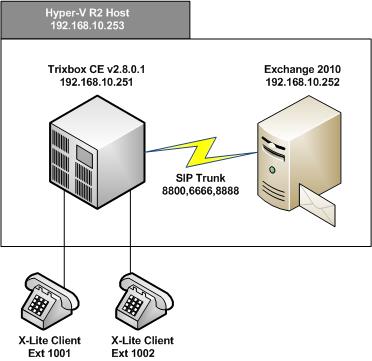
So firstly let me go into the goal in more detail, using Hyper-V R2 (built into Windows Server 2008 R2), I will be running Exchange 2010 UM and Trixbox 2.8 – illustrated below.
Installing Trixbox:
Trixbox comes in a variety of flavours, the “CE” is the community edition and it is free with no commercial support (a support plan can be purchased separately at a later date if you wish). I have written this guide whilst testing against version 2.8.0.1 (stable).
Firstly download the ISO from http://www.trixbox.org/downloads
Next create your virtual machine, whilst Trixbox will run with 256mb of memory I would recommend 512mb. After the VM is created go to settings and remove the network adaptor and replace it with a legacy network adaptor – the default NIC does not function as there are no integration services for CentOS (this is the flavour of Linux used by Trixbox).
Mount the Trixbox ISO previously downloaded and let the install begin…
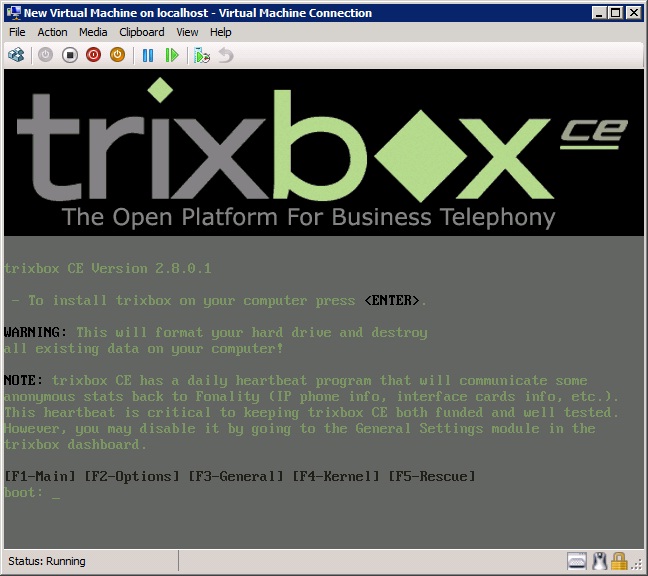
You should now be presented with the screen illustrated above, press enter to continue.
Next you are asked your keyboard type, then time zone and finally to set a root password (this is the Linux equivalent of “Administrator”). Now sit back, relax and resist the temptation to twitter what you are doing – save that for when it is up and running!
Approximately 30mins later you will be presented with the screen above (for the second time around), this is because during a reboot it has booted again off the mounted ISO. At this point turn off your newly created VM and remove the installation ISO – you can set your media to none. Now re-start the VM and your Trixbox PBX will perform its initial start-up normally.

Congratulations, your Trixbox install has now completed and you will hopefully be presented with the login screen illustrated above.
Your login is “root” with the password you created during the installation.
After login change your IP configuration from DHCP to static by typing “system-config-network”, edit device params, eth0, de-select DHCP and enter a static address – I am using 192.168.10.251. Don’t forget your netmask (mine is 255.255.255.0) and finally default gateway IP (mine is 192.168.10.1). Save, Save&Quit. To run using the new network settings type “shutdown –r now” – this tells your system to shutdown and restart immediately.
No more command line, its web interface from here on in! When you are presented with the login screen your web address should now be displayed correctly – in my case http://192.168.10.251.
Open your browser (I am using IE8 and compatibility view is required); connect to your Trixbox web GUI. To make the required changes switch the admin mode by clicking “switch” on the top right of the web GUI. The default username is “maint” and password “password” – this can of course be changed later.
Before you do anything let’s set Asterisk to allow SIP over TCP, go to PBX and config file editor. This is a method of editing your config files without having to use Linux command line tools such as “nano”. You’ll need to edit the sip_general_custom.conf file located in /etc/asterisk. This file is blank and the following needs to be added:
tcpenable=yes
tcpbindaddr=0.0.0.0
Click update and then go to PBX, PBX Settings, Trunks, Add SIP Trunk. Enter the following details in “Outgoing Settings”:
Trunk Name: Exchange
PEER Details:
host=[IP Address of Exchange 2010 UM Server]
type=friend
insecure=very
transport=tcp
port=5065
context=from-internal
Mine looks like this (so remove any default settings):

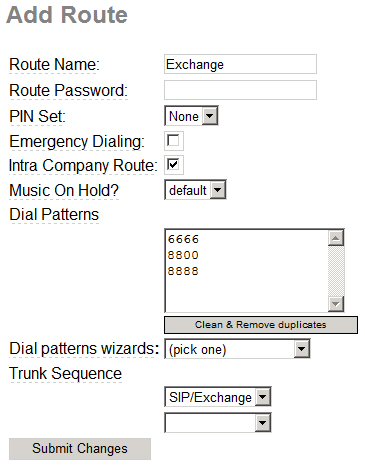
Click save and ignore the message telling you that the user context was left blank. Now we will add an associated outbound route. Click “Outbound Routes” and add:
Route Name: Exchange
Intra Company Route: Checked
Dial Patterns:
6666
8800
8888
Trunk Sequence:
SIP/Exchange
My example is below:
Submit your changes and voila, we now have an interconnect between our Trixbox and Exchange.
Setup SIP Extension(s):
I want to now configure two SIP extensions, in my first diagram you can see two X-Lite clients with extension numbers 1001 and 1002. To configure these extensions go to Extensions, Generic SIP Device, Submit. You will now be presented with a whole host of options, the important settings are:
User Extension: [Your telephone extension number – mine is 1001]
Display Name: [Users name – mine is Adam Jacobs]
secret: [a password used by the SIP client]
type: peer (without this Asterisk will not permit Exchange “play on phone”) Update, this field is not available until you add the extension and go back later and edit the details – Thanks to Benson for this one!
Voicemail & Directory:
Status: “Enabled”
Voicemail Password: 1234 (any password can be used, this is unused but necessary even though we are using Exchange)
Click submit and then follow the same procedure when you create additional extensions destined for Exchange UM.
To test your extension you need a SIP client, as previously mentioned I am using a soft SIP phone called X-Lite. Download from http://www.counterpath.net and configure as follows:
Display Name: [Your display name – mine is Adam Jacobs]
User Name: [Your SIP extension number – mine is 1001]
Password: [Your “secret” set earlier]
Authorization User name: [Your SIP extension number – mine is 1001]
Domain: [The IP address of your Trixbox – mine is 192.168.10.251]
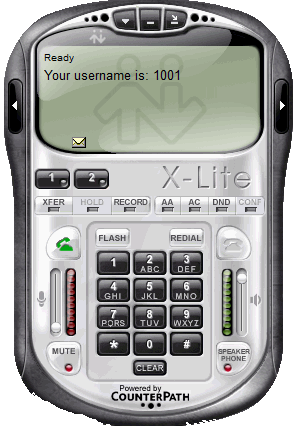
The rest can be left as default and if all goes well your client will register successfully. (see my example below)
Configure Exchange 2010 UM:
As this guide as aimed at Exchange administrators my assumption is that you have already got your base install up and running, I will therefore only cover off your Unified Messaging settings.
In the Exchange Management Console (EMC) go to Organization Configuration, Unified Messaging , New UM Dial Plan.
Name: UM Dial Plan
Number of digits in extension numbers: 4 (I have used 4 but change to suit your needs)
URI type: Telephone Extension (this type ensures automatic mailbox recognition for your Trixbox)
VoIP security: Unsecured
Country/Region code: 44 [44 is for UK]
My example below:
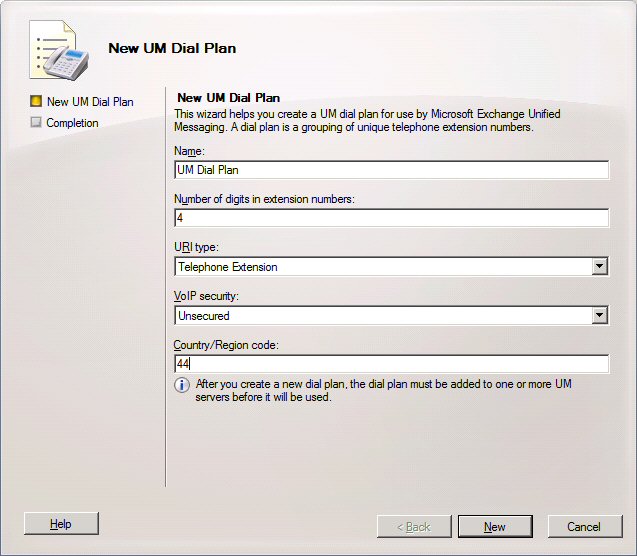
After creating this plan you need to change some settings, go to properties, Subscriber access and add extension 8800. Then in the Settings tab change the Audio codec to G711.
Now create a new UM IP Gateway:
Name: Trixbox
IP address: 192.168.10.251 (my Trixbox IP)
Dial plan: UM Dial Plan (this is the plan just created)
Please note upon submitting your UM IP Gateway settings a Default Hunt Group will be automatically created – you do not need to touch this.
Next a UM Mailbox Policy is created:
Name: Trixbox
Associated dial plan: UM Dial Plan (this is the plan just created)
Almost there, let’s create the Auto Attendant.
Name: Trixbox AA
Associated dial plan: UM Dial Plan (this is the plan just created)
Pilot identifiers: 6666 click add, then 8888
Check both, create auto attendant as enabled and create auto attendant as speech-enabled.
Within the EMC go to Server Configuration, Unified Messaging, double click your server and go to the UM Settings tab. Add your Dial Plan “UM Dial Plan” and click ok.
Finally you need to enable one of your mailboxes for Unified Messaging. Go to Recipient Configuration within the EMC and enable Unified Messaging for your intended mailbox. Browse to your Mailbox Policy “Trixbox” and enter the extension number – mine is 1001.
If everything went to plan you should now be able to dial your subscriber access number 8800 from the X-Lite client and get automatically forwarded to your Exchange voicemail box. Likewise if you dial your Auto Attendant on either 6666 or 8888 you should be greeted by “Thank you for calling the Microsoft Exchange Auto Attendant” – if you do then you have followed my guide successfully and you can soon break out the champagne (or tweet your good fortune)!
All you need to do to complete the integration by ensuring Trixbox routes unanswered calls to Exchange and not to its own voicemail system.
Head back into your Trixbox web GUI, PBX, Config File Editor, you need to edit the extensions.conf file located in /etc/asterisk. Specifically the section [macro-exten-vm].
You need to change:
exten => s,n,Macro(vm,${VMBOX},${DIALSTATUS},${IVR_RETVM})
to:
;exten => s,n,Macro(vm,${VMBOX},${DIALSTATUS},${IVR_RETVM})
exten => s,n,SIPAddHeader(Diversion: <tel:${EXTTOCALL}>\;reason=no-answer\;screen=no\;privacy=off)
exten => s,n,Dial(SIP/Exchange/8800)
exten => s,n,Hangup
This tells Trixbox to no longer route unanswered calls to its own voicemail but instead send them down the SIP trunk “Exchange” extension “8800” aka the subscriber access number.
So there we have it, Trixbox (or Asterisk 1.6) fully integrated with Exchange 2010. If you have any questions or comments please let me know!